
Motileo changelog
TV Slide Dynamic Modes
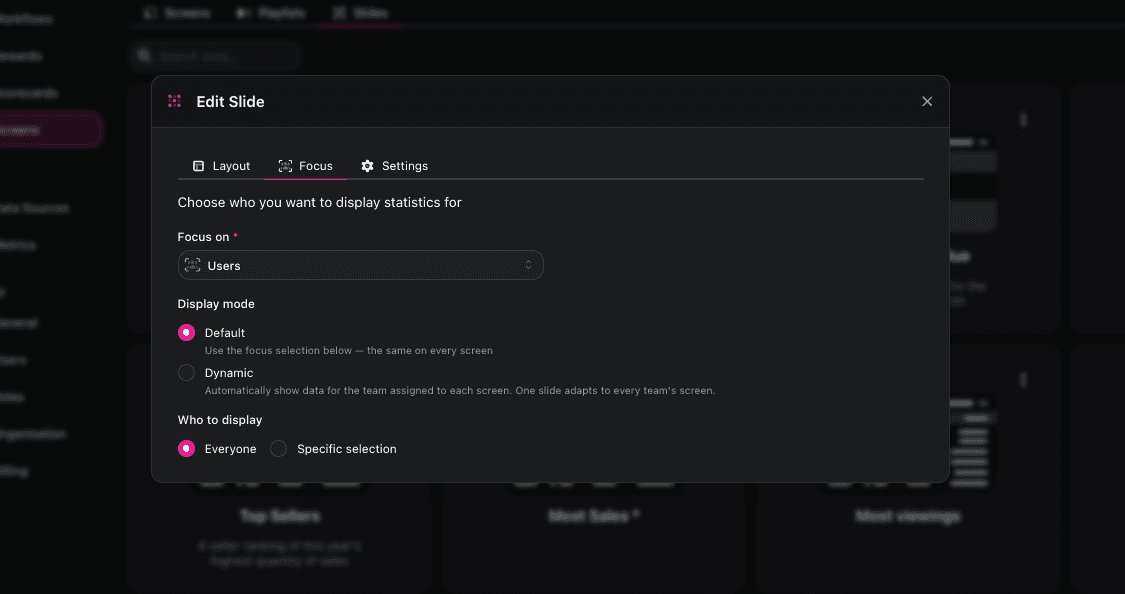
We've added a new way to make your TV slides smarter. Now a single slide can automatically show different data depending on which team's TV is displaying it.
What's new
TVs can be assigned to a team. Each TV in your account can now be linked to a specific team, so it "knows" which group it belongs to.
Slides now have two modes:
Default mode — Works exactly like before. The slide shows data based on the filters you set up. Same slide, same data, on every TV.
Dynamic mode — The slide adapts automatically based on the TV's assigned team. You can choose between:
Own team — Shows data for the team assigned to the TV
Own department — Shows data for the department of the team assigned to the TV
Why this is useful
Before, if you wanted each team to see their own numbers on their own TV, you had to create a separate slide for every team. That meant lots of duplicate slides to manage and keep up to date.
Now you can build one slide in dynamic mode, use it across multiple TVs, and each TV will automatically show the right data for its team. Update the slide once, and every TV updates with it.
Example: You build a sales leaderboard slide in dynamic mode set to "own team." The Sales team's TV shows the sales leaderboard. The Support team's TV shows the support leaderboard. Same slide — different data, automatically.
What if a TV isn't assigned to a team?
If a TV in dynamic mode isn't linked to any team, it will simply show all company data. So nothing breaks — you'll just see the full picture instead of a team-specific view.
Getting started
Go to your TV settings and assign each TV to the right team.
Open any slide and switch it to Dynamic mode if you want it to adapt per TV.
Pick whether it should pull data for the own team or own department.
That's it. One slide, many teams, zero duplicates.